
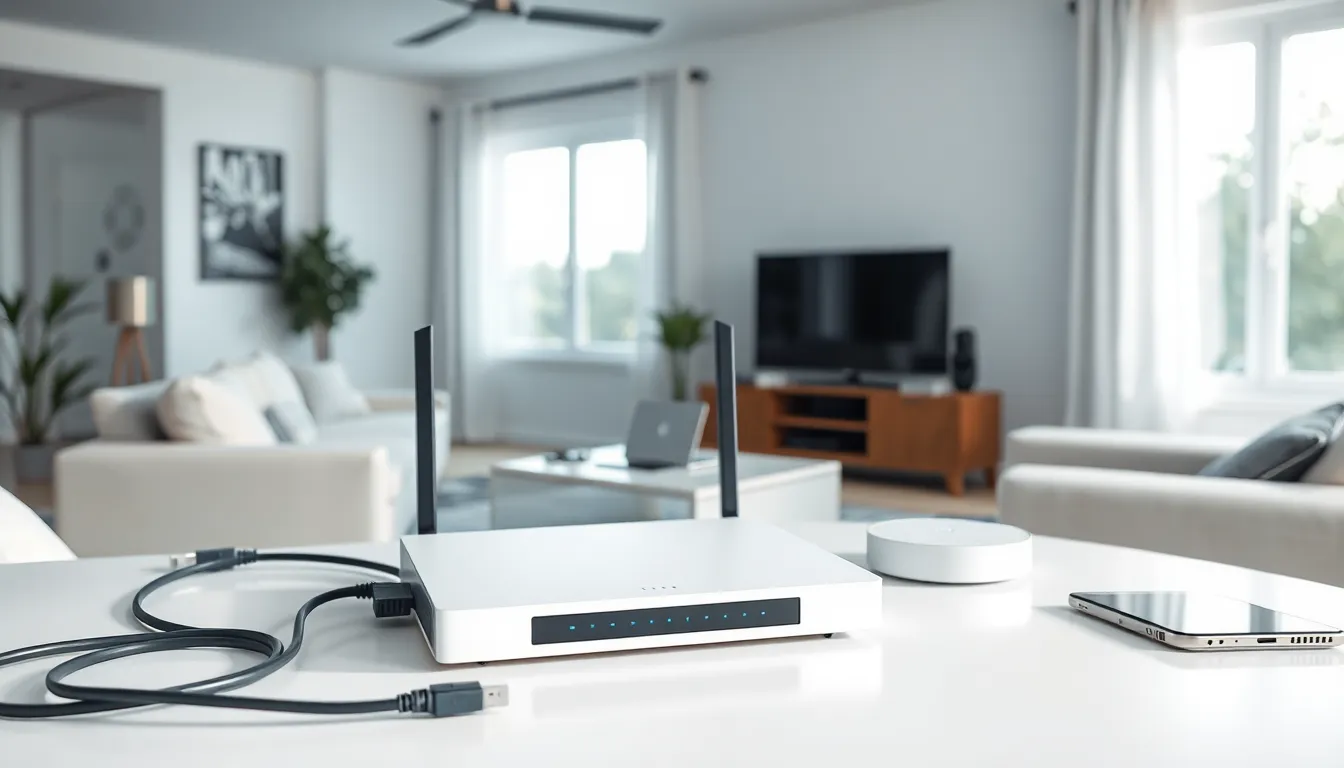
Home networking forms the backbone of modern living. Smart TVs, gaming consoles, security cameras, and work-from-home setups all depend on a solid network connection. Yet many households struggle with dead zones, slow speeds, and dropped connections.
This guide breaks down everything needed to build a reliable home network. It covers the basics, essential equipment, setup steps, and optimization tips. Whether someone is starting from scratch or improving an existing setup, these straightforward strategies will help create a connected home that actually works.
Table of Contents
ToggleKey Takeaways
- A reliable home networking setup requires three core components: a modem, router, and proper cable connections working together.
- Position your router in a central, elevated location away from walls and interference-causing devices like microwaves.
- Mesh Wi-Fi systems eliminate dead zones in larger homes by creating a seamless network throughout the house.
- Always change default admin passwords and enable WPA3 encryption to secure your home network from unauthorized access.
- Use wired ethernet connections for stationary devices like gaming consoles and desktops to maximize speed and reliability.
- Regularly update router firmware and restart equipment monthly to maintain optimal home networking performance.
Understanding Home Network Basics
A home network connects devices so they can share internet access and communicate with each other. The concept is simple: data travels from the internet to a modem, then through a router, and finally to connected devices.
How Home Networking Works
The modem receives the internet signal from a service provider. It converts that signal into a format devices can use. The router then distributes the connection to multiple devices, either through ethernet cables or Wi-Fi.
Most modern home networking setups use a combination of wired and wireless connections. Desktop computers and gaming consoles often benefit from wired connections. Smartphones, tablets, and laptops typically connect wirelessly.
Key Terms to Know
Bandwidth refers to the maximum data transfer rate of a network. Higher bandwidth means faster potential speeds.
Latency measures the delay between sending and receiving data. Low latency matters for video calls and online gaming.
IP address is a unique identifier assigned to each device on a network. Routers use these addresses to direct traffic correctly.
SSID stands for Service Set Identifier, it’s simply the name of a Wi-Fi network.
Understanding these basics helps when troubleshooting issues or upgrading equipment. A solid grasp of home networking fundamentals makes the entire setup process less confusing.
Essential Equipment for Your Home Network
Building a reliable home network requires the right equipment. Each component plays a specific role in delivering fast, stable connectivity.
Modem
The modem connects a home to the internet service provider. Some ISPs provide modems, but purchasing one often saves money over time. Look for a modem compatible with the ISP and capable of handling the subscribed speed tier.
Router
The router is the heart of any home networking system. It creates the local network and manages traffic between devices. Modern routers support Wi-Fi 6 or Wi-Fi 6E standards, which offer faster speeds and better performance with multiple devices.
Dual-band routers broadcast on both 2.4GHz and 5GHz frequencies. The 2.4GHz band travels farther but offers slower speeds. The 5GHz band provides faster speeds over shorter distances.
Mesh Systems
Larger homes often need mesh Wi-Fi systems. These use multiple units placed throughout the house to eliminate dead zones. Mesh systems create a single seamless home network that devices connect to automatically as users move around.
Ethernet Cables and Switches
Wired connections remain the gold standard for speed and reliability. Cat6 or Cat6a ethernet cables handle most home networking needs. A network switch expands the number of available wired ports when needed.
Additional Considerations
Some households benefit from powerline adapters, which send network signals through electrical wiring. Others use MoCA adapters to leverage existing coaxial cables. The best equipment choice depends on home size, layout, and specific needs.
Setting Up Your Home Network Step by Step
Setting up a home network doesn’t require technical expertise. Follow these steps for a smooth installation.
Step 1: Position Your Equipment
Place the router in a central location. Avoid closets, cabinets, and corners, these block signals. Elevate the router if possible. Keep it away from microwaves and cordless phones, which can cause interference.
Step 2: Connect the Hardware
Connect the modem to the internet source (cable outlet, phone jack, or fiber terminal). Wait for the modem to establish a connection, this usually takes a few minutes. Then connect the router to the modem using an ethernet cable.
Step 3: Configure the Router
Access the router’s settings through a web browser or mobile app. Change the default admin password immediately. Create a unique network name (SSID) and a strong Wi-Fi password.
Most home networking setups benefit from enabling both 2.4GHz and 5GHz bands. Some routers offer a smart connect feature that automatically assigns devices to the optimal band.
Step 4: Connect Your Devices
Select the network name on each device and enter the password. Prioritize wired connections for stationary devices that need consistent bandwidth. Use Wi-Fi for mobile devices.
Step 5: Test the Connection
Run a speed test to verify the connection matches the ISP’s advertised speeds. Walk through the house to identify any weak signal areas. Note these spots for potential improvements later.
Tips for Optimizing Network Performance and Security
A basic home network gets the job done. An optimized home network performs significantly better. These tips help squeeze maximum performance from any setup.
Performance Optimization
Update firmware regularly. Router manufacturers release updates that fix bugs and improve performance. Check for updates monthly or enable automatic updates.
Choose the right channel. Wi-Fi networks can get crowded, especially in apartments. Use a Wi-Fi analyzer app to find less congested channels. Switch the router to these channels for better home networking performance.
Enable QoS settings. Quality of Service (QoS) lets the router prioritize certain types of traffic. Prioritize video conferencing during work hours or gaming during evening hours.
Restart equipment periodically. A monthly router restart clears memory and refreshes connections. Some users schedule automatic restarts during off-hours.
Security Best Practices
Use WPA3 encryption. This is the latest and most secure Wi-Fi encryption standard. If devices don’t support WPA3, use WPA2 at minimum.
Create a guest network. Visitors can connect without accessing the main network. This protects smart home devices and personal computers from potential threats.
Disable WPS. Wi-Fi Protected Setup has known vulnerabilities. Turn it off in router settings.
Change default credentials. Many routers ship with predictable admin usernames and passwords. Change these during initial setup.
Monitor connected devices. Check the router’s device list periodically. Unknown devices could indicate unauthorized access.
Strong home networking security protects personal data, prevents bandwidth theft, and keeps smart home devices safe from hijacking.


