
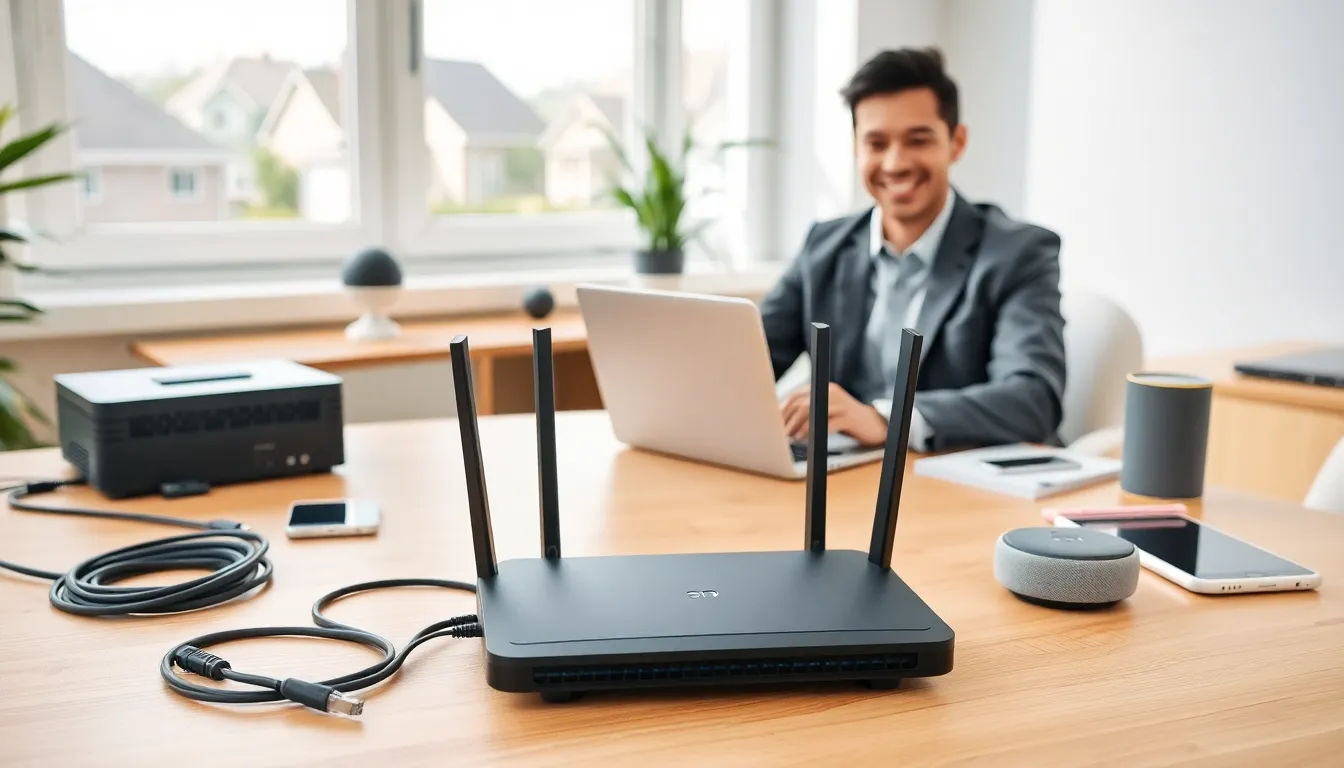
Home networking for beginners doesn’t have to feel overwhelming. A home network connects devices like computers, smartphones, smart TVs, and gaming consoles so they can share internet access and communicate with each other. Whether someone wants to stream movies, work from home, or connect smart home gadgets, understanding the basics makes everything easier.
This guide breaks down the essentials. It covers what a home network actually is, the equipment needed, how to set everything up, and how to keep it secure. By the end, anyone can build a reliable home network without calling in a professional.
Table of Contents
ToggleKey Takeaways
- Home networking for beginners starts with understanding that a router and modem are the essential hardware for connecting all your devices to the internet.
- Ethernet cables provide faster and more stable connections than Wi-Fi, making them ideal for gaming consoles and desktop computers.
- Always change the default network name, Wi-Fi password, and admin password during setup to secure your home network from day one.
- Use WPA3 or WPA2 encryption and set up a separate guest network to protect personal devices and data from unauthorized access.
- Mesh Wi-Fi systems outperform range extenders for eliminating dead zones in larger homes with multiple rooms.
- Regularly update your router’s firmware and monitor connected devices to maintain optimal security and performance.
What Is a Home Network and Why Do You Need One
A home network is a group of devices connected together within a household. These devices share a single internet connection and can exchange data with each other. Think of it as the digital backbone of a modern home.
Most households already have a basic home network without realizing it. When a router connects to an internet modem and broadcasts Wi-Fi, that’s a home network in action. Every phone, laptop, tablet, and smart speaker using that Wi-Fi signal is part of the same network.
Why Home Networking Matters
Home networking for beginners starts with understanding why it’s useful. Here are the main benefits:
- Shared Internet Access: Multiple devices can use one internet connection simultaneously.
- File Sharing: Users can transfer files between computers without USB drives or email.
- Printer Sharing: One printer can serve every device in the house.
- Smart Home Integration: Devices like thermostats, lights, and security cameras need a network to function.
- Media Streaming: Stream content from a computer to a TV or access a shared media library.
Without a home network, each device would operate in isolation. That means no wireless printing, no streaming to the living room TV, and no smart home automation. For most people today, a home network isn’t optional, it’s essential.
Essential Equipment for Your Home Network
Building a home network requires a few key pieces of hardware. Here’s what beginners need to know about each component.
Modem
The modem connects a home to the internet service provider (ISP). It translates the signal from the ISP into data that devices can use. Most ISPs provide a modem, though users can often purchase their own for better performance or to avoid rental fees.
Router
The router is the heart of any home network. It takes the internet signal from the modem and distributes it to connected devices. Routers create both wired (Ethernet) and wireless (Wi-Fi) connections. Many modern setups use a combination modem-router unit, which simplifies things.
When shopping for a router, consider:
- Wi-Fi Standard: Wi-Fi 6 (802.11ax) offers faster speeds and better performance with multiple devices.
- Coverage Area: Larger homes may need mesh systems or range extenders.
- Number of Ports: More Ethernet ports allow more wired connections.
Ethernet Cables
For the fastest and most stable connections, Ethernet cables beat Wi-Fi every time. They’re ideal for gaming consoles, desktop computers, and streaming devices. Cat6 cables work well for most home networking needs.
Network Switch (Optional)
If the router doesn’t have enough Ethernet ports, a network switch adds more. This is useful for home offices or entertainment centers with several wired devices.
Wi-Fi Extenders or Mesh Systems
Large homes or those with thick walls may have dead zones where Wi-Fi doesn’t reach. Wi-Fi extenders boost the existing signal, while mesh systems create a unified network with multiple access points. Mesh systems generally provide better performance for home networking.
Setting Up Your Home Network Step by Step
Home networking for beginners becomes straightforward with a clear process. Follow these steps to get everything running.
Step 1: Connect the Modem
Plug the modem into the wall outlet (coaxial cable for cable internet, phone jack for DSL, or Ethernet for fiber). Connect the power cable and wait for the modem to fully boot up. The indicator lights should stabilize after a few minutes.
Step 2: Connect the Router
Use an Ethernet cable to connect the modem to the router’s WAN or Internet port. Plug in the router’s power cable. Again, wait for the lights to indicate it’s ready.
Step 3: Access the Router’s Settings
Open a web browser on a computer or phone connected to the router. Type the router’s IP address into the address bar, common addresses include 192.168.1.1 or 192.168.0.1. The router’s manual lists the correct address and default login credentials.
Step 4: Configure Basic Settings
Once logged in, change these settings:
- Network Name (SSID): Pick something unique but not personally identifiable.
- Password: Create a strong Wi-Fi password with letters, numbers, and symbols.
- Admin Password: Change the default admin login to prevent unauthorized access.
Step 5: Connect Devices
With the network active, connect devices via Wi-Fi or Ethernet. Most devices will automatically detect available networks. Select the network name, enter the password, and the device joins the home network.
Step 6: Test the Connection
Run a speed test on a few devices to verify everything works. If speeds seem slow, try repositioning the router to a central location away from walls and electronic interference.
Tips for Securing Your Home Network
Security matters. An unsecured home network can expose personal data, slow down internet speeds (if neighbors hop on), and even allow hackers to access connected devices.
Here’s how to lock things down:
Use Strong Encryption
Set the router to use WPA3 encryption if available. If not, WPA2 is the next best option. Avoid WEP, it’s outdated and easy to crack.
Create a Guest Network
Most routers allow users to set up a separate guest network. This keeps visitors off the main network where personal devices and files live. It’s also useful for IoT devices like smart bulbs that may have weaker security.
Update Firmware Regularly
Router manufacturers release firmware updates to fix security holes. Check for updates every few months through the router’s admin panel. Some newer routers update automatically.
Disable Remote Management
Unless there’s a specific need, turn off remote management features. This prevents anyone outside the home from accessing router settings.
Monitor Connected Devices
Periodically review the list of devices connected to the home network. The router’s admin panel shows all active connections. If something unfamiliar appears, change the Wi-Fi password immediately.
These steps take just a few minutes but make a significant difference. Home networking for beginners should always include security from day one.


