
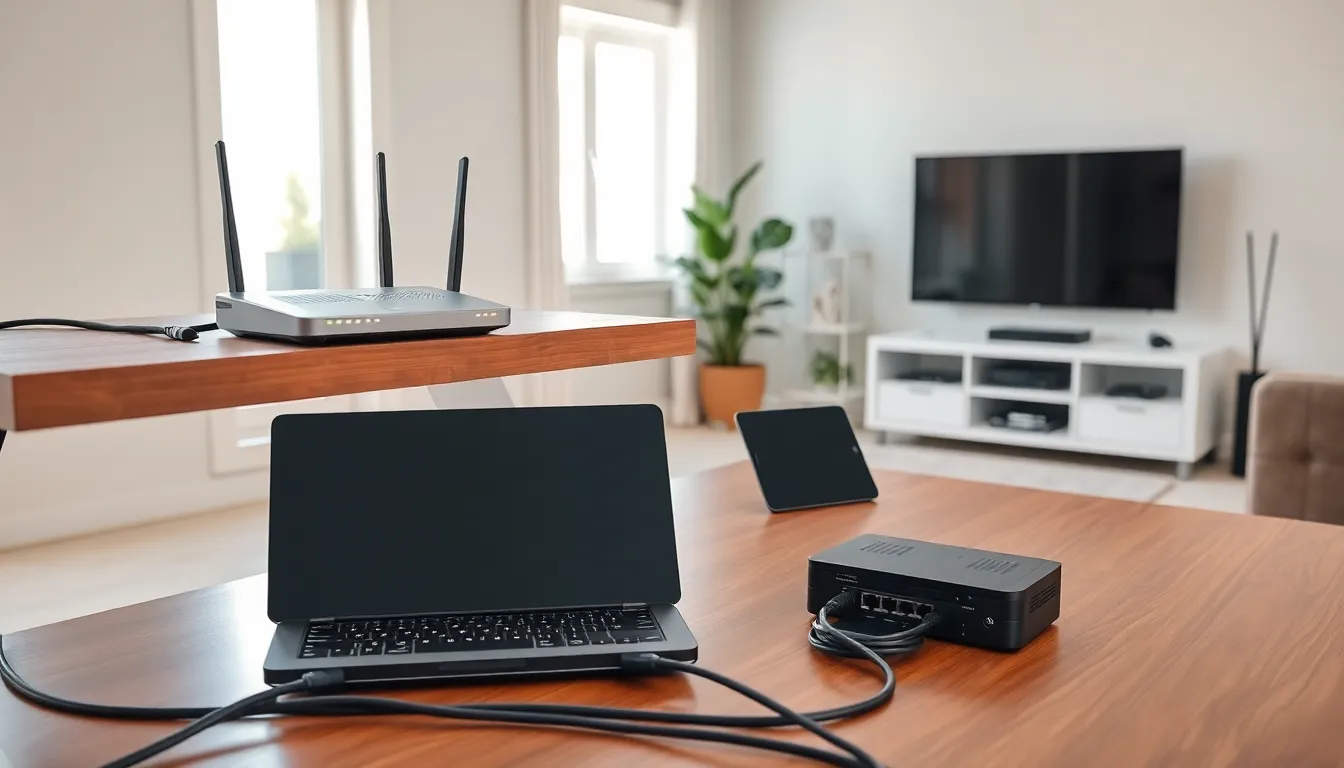
A solid home network forms the backbone of modern digital life. Streaming, gaming, remote work, and smart home devices all depend on reliable connectivity. This home networking guide breaks down everything needed to build a fast, secure network from scratch. Whether someone is upgrading an existing setup or starting fresh, understanding the fundamentals makes all the difference. The right equipment, proper configuration, and smart optimization turn a frustrating connection into one that just works.
Table of Contents
ToggleKey Takeaways
- A reliable home network starts with quality equipment—invest in a Wi-Fi 6 router and consider a mesh system for larger homes with dead zones.
- Position your router in a central, elevated location away from interference sources like microwaves and cordless phones for optimal signal strength.
- Use wired Ethernet connections for stationary devices like gaming consoles and desktop computers to achieve faster speeds and lower latency.
- Secure your home network by changing default credentials, enabling the firewall, using WPA3 encryption, and creating a separate guest network.
- Optimize Wi-Fi performance by selecting non-overlapping channels (1, 6, or 11 on 2.4 GHz) and enabling QoS settings for priority applications.
- Maintain your network by checking firmware updates monthly, reviewing connected devices quarterly, and testing speeds seasonally.
Understanding the Basics of Home Networking
A home network connects devices within a household so they can share resources and access the internet. The network allows computers, phones, tablets, smart TVs, and IoT devices to communicate with each other and reach online services.
How Home Networks Work
Every home network starts with an internet connection from a service provider. A modem receives this signal and converts it into data that devices can use. A router then distributes that connection to multiple devices, either through Ethernet cables or Wi-Fi signals.
Most modern setups use a combination of wired and wireless connections. Wired connections through Ethernet cables offer faster speeds and lower latency. Wireless connections provide convenience and mobility throughout the home.
Key Terms to Know
- SSID: The name of a wireless network that appears when searching for available connections
- IP Address: A unique identifier assigned to each device on the network
- Bandwidth: The maximum data transfer rate of the network connection
- Latency: The delay between sending and receiving data, measured in milliseconds
- Dual-band vs. Tri-band: Routers that broadcast on multiple frequency bands (2.4 GHz and 5 GHz)
Understanding these home networking basics helps users make informed decisions about equipment and configuration. The 2.4 GHz band offers better range but slower speeds. The 5 GHz band delivers faster speeds but over shorter distances.
Essential Equipment You Need
Building a reliable home network requires the right hardware. Here’s what belongs on the shopping list.
Modem
The modem connects to the internet service provider’s infrastructure. Cable internet requires a DOCSIS 3.1 modem for gigabit speeds. Fiber connections typically use provider-supplied optical network terminals. Purchasing a modem instead of renting one saves money over time, often $10-15 per month.
Router
The router manages traffic between devices and the internet. A quality router determines network performance more than almost any other factor. Look for these features:
- Wi-Fi 6 (802.11ax) or Wi-Fi 6E support
- At least 1 Gbps throughput
- Multiple Ethernet ports for wired connections
- Quality of Service (QoS) settings
- Guest network capability
For larger homes, a mesh system works better than a single router. Mesh systems use multiple access points that work together to eliminate dead zones. They’re especially useful in multi-story homes or those with thick walls.
Additional Hardware
Ethernet cables (Cat 6 or Cat 6a) provide the fastest, most stable connections for gaming consoles, desktop computers, and streaming devices. Network switches expand the number of available wired ports. Powerline adapters carry network signals through electrical wiring, useful when running cables isn’t practical.
A home networking guide wouldn’t be complete without mentioning cable management. Velcro ties and cable raceways keep things organized and prevent accidental disconnections.
Setting Up Your Home Network Step by Step
Setting up a home network takes about 30-60 minutes with the right preparation. Follow these steps for a smooth installation.
Step 1: Position Your Equipment
Place the router in a central location, elevated off the floor. Avoid closets, cabinets, and areas near microwaves or cordless phones, these interfere with Wi-Fi signals. The ideal spot is an open shelf in a central room.
Step 2: Connect the Hardware
- Connect the modem to the internet source (coax cable for cable internet, phone jack for DSL)
- Plug an Ethernet cable from the modem to the router’s WAN port
- Power on the modem first, wait two minutes, then power on the router
- Wait for all indicator lights to stabilize
Step 3: Configure the Router
Access the router’s admin panel through a web browser. The default address is usually 192.168.1.1 or 192.168.0.1, check the router’s documentation. During initial setup:
- Change the default admin password immediately
- Create a unique SSID (network name)
- Set a strong Wi-Fi password with WPA3 encryption (or WPA2 if devices don’t support WPA3)
- Update the router’s firmware to the latest version
Step 4: Connect Devices
Wire stationary devices like desktop computers, gaming consoles, and smart TVs directly to the router when possible. Connect mobile devices to the Wi-Fi network using the SSID and password created earlier.
This home networking setup process establishes the foundation. Testing speed at various locations throughout the home reveals whether additional access points are needed.
Tips for Optimizing Performance and Security
A working network is good. A fast, secure network is better. These optimization tips squeeze maximum performance from home networking equipment.
Speed Optimization
Channel selection matters for Wi-Fi performance. The 2.4 GHz band has channels 1-11, but only channels 1, 6, and 11 don’t overlap. Most routers auto-select channels, but manual selection sometimes yields better results in apartment buildings with many competing networks.
QoS settings prioritize traffic for specific applications. Enable QoS and assign higher priority to video conferencing, gaming, or streaming services. This prevents large downloads from slowing down time-sensitive activities.
Regular reboots clear the router’s memory and resolve minor issues. Schedule automatic reboots weekly during low-usage hours.
Security Best Practices
Home networks face real threats. Hackers scan for vulnerable networks constantly. Protect the network with these measures:
- Change default credentials: Default usernames and passwords are publicly known
- Enable firewall: Most routers include a built-in firewall, make sure it’s active
- Create a guest network: Visitors get internet access without accessing personal devices
- Disable WPS: Wi-Fi Protected Setup has known vulnerabilities
- Update firmware regularly: Manufacturers patch security holes through updates
Maintenance Schedule
Set calendar reminders to:
- Check for firmware updates monthly
- Review connected devices quarterly (remove unknown devices)
- Change Wi-Fi passwords annually
- Test speeds seasonally to catch degradation early
A home networking guide that ignores security leaves users vulnerable. These practices take minimal effort but provide substantial protection.


