
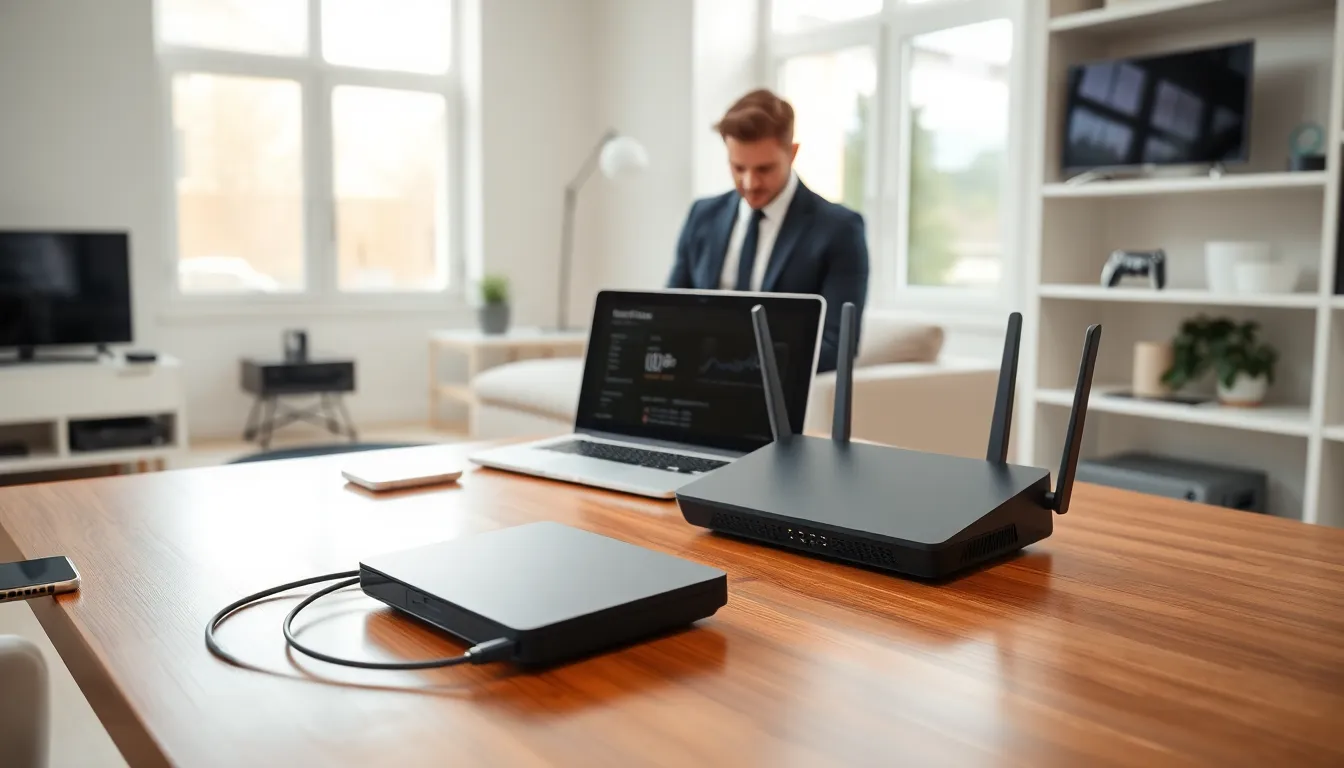
Home networking techniques determine how well devices communicate, stream, and stay secure under one roof. A solid home network connects phones, laptops, smart TVs, and gaming consoles without constant buffering or dropped signals. Yet many households run on outdated setups or default router settings that leave performance and security on the table.
This guide breaks down the core principles behind reliable home networking. It covers the basics, compares wired and wireless options, explains how to boost Wi-Fi coverage, and outlines security practices that actually matter. Whether someone wants faster streaming, smoother video calls, or better protection from intruders, these home networking techniques provide a clear path forward.
Table of Contents
ToggleKey Takeaways
- Effective home networking techniques start with understanding core components like modems, routers, bandwidth, and latency to troubleshoot issues and make smarter upgrades.
- Wired Ethernet connections deliver the fastest, most stable performance for stationary devices, while Wi-Fi 6 offers convenience for mobile devices.
- Position your router centrally and elevated, away from interference sources like microwaves and cordless phones, to maximize Wi-Fi coverage.
- Mesh Wi-Fi systems provide seamless whole-home coverage and outperform range extenders for consistent network performance.
- Secure your home network by changing default router credentials, enabling WPA3 encryption, and creating a separate guest network for visitors.
- Regularly update router firmware and monitor connected devices to maintain optimal security and performance.
Understanding Your Home Network Basics
Every home network starts with a few key components. The modem connects to the internet service provider (ISP) and brings the connection into the home. The router distributes that connection to devices, either through cables or wirelessly. Many ISPs provide a combo device that handles both functions.
Devices on a home network communicate through IP addresses. The router assigns these addresses automatically using DHCP (Dynamic Host Configuration Protocol). Each device gets a unique local address, which allows the router to send data to the right place.
Bandwidth refers to how much data can flow through the network at once. A 500 Mbps plan, for example, can theoretically handle 500 megabits per second, but actual speeds depend on router quality, device capability, and network congestion. Latency measures delay. Low latency matters for gaming and video calls: high latency causes lag and stuttering.
Understanding these home networking techniques helps homeowners troubleshoot problems and make smarter upgrade decisions. Knowing where the bottleneck sits, whether it’s the modem, router, or ISP plan, saves time and money.
Wired vs. Wireless Networking Options
Wired and wireless connections each have strengths. The right choice depends on the use case, location, and budget.
Wired Connections
Ethernet cables deliver the fastest and most stable connections. A Cat6 cable supports speeds up to 10 Gbps over short distances. Wired setups work best for desktop computers, gaming consoles, smart TVs, and home offices where consistent performance matters.
The main drawback? Cables require drilling, routing, or visible runs along walls. Installation takes more effort, especially in multi-story homes. But the payoff includes lower latency, zero interference, and reliable throughput.
Wireless Connections
Wi-Fi offers convenience. Laptops, phones, tablets, and smart home devices connect without cables. Modern routers use Wi-Fi 6 (802.11ax), which handles more simultaneous connections and delivers faster speeds than older standards.
Wireless signals weaken over distance. Walls, floors, and appliances create interference. A router in the basement may struggle to reach upstairs bedrooms. These home networking techniques require strategic router placement and sometimes additional hardware.
Hybrid Approach
Many households combine both methods. They run Ethernet to stationary devices and rely on Wi-Fi for mobile ones. Powerline adapters and MoCA adapters offer middle-ground solutions, they use existing electrical or coaxial wiring to extend wired connections without new cable runs.
Optimizing Wi-Fi Coverage and Performance
Weak Wi-Fi frustrates everyone. A few adjustments can dramatically improve coverage and speed.
Router Placement
Position the router centrally. Placing it in a corner or closet limits signal reach. Elevate it on a shelf rather than on the floor. Keep it away from microwaves, cordless phones, and baby monitors, these devices operate on similar frequencies and cause interference.
Channel Selection
Routers broadcast on specific channels within the 2.4 GHz and 5 GHz bands. Neighboring networks may crowd the same channel, causing congestion. Most routers have an “auto” setting, but manually selecting a less crowded channel often improves performance. Apps like Wi-Fi Analyzer show which channels nearby networks use.
Mesh Systems and Range Extenders
Large homes benefit from mesh Wi-Fi systems. These use multiple access points that work together, creating seamless coverage throughout the house. Devices switch between nodes automatically as users move around.
Range extenders cost less but create a separate network and can reduce speeds. Mesh systems maintain a single network name and provide better home networking techniques for consistent performance.
Firmware Updates
Router manufacturers release firmware updates that fix bugs, improve security, and boost performance. Checking for updates every few months keeps the network running smoothly. Some routers update automatically: others require manual checks through the admin interface.
Essential Security Practices for Home Networks
An unsecured network invites trouble. Hackers can steal data, hijack devices, or use the connection for illegal activity. These home networking techniques protect households from common threats.
Change Default Credentials
Routers ship with default usernames and passwords, often “admin” and “password” or something equally weak. Attackers know these defaults. Changing login credentials immediately blocks the easiest entry point.
Use Strong Encryption
WPA3 offers the strongest Wi-Fi encryption available today. If the router supports it, enable WPA3. Otherwise, use WPA2. Never use WEP, it’s outdated and easily cracked.
Create a Wi-Fi password with at least 12 characters, mixing letters, numbers, and symbols. Avoid dictionary words and personal information.
Create a Guest Network
Guest networks keep visitors’ devices separate from the main network. This prevents guests from accessing shared files, printers, or smart home devices. Many routers include a guest network option in the settings menu.
Disable Remote Management
Remote management allows access to router settings from outside the home. Unless specifically needed, disable this feature. It closes a potential door for attackers.
Monitor Connected Devices
Regularly check which devices connect to the network. Unknown devices may indicate unauthorized access. Most router admin panels show a list of connected devices with their names and IP addresses.


