
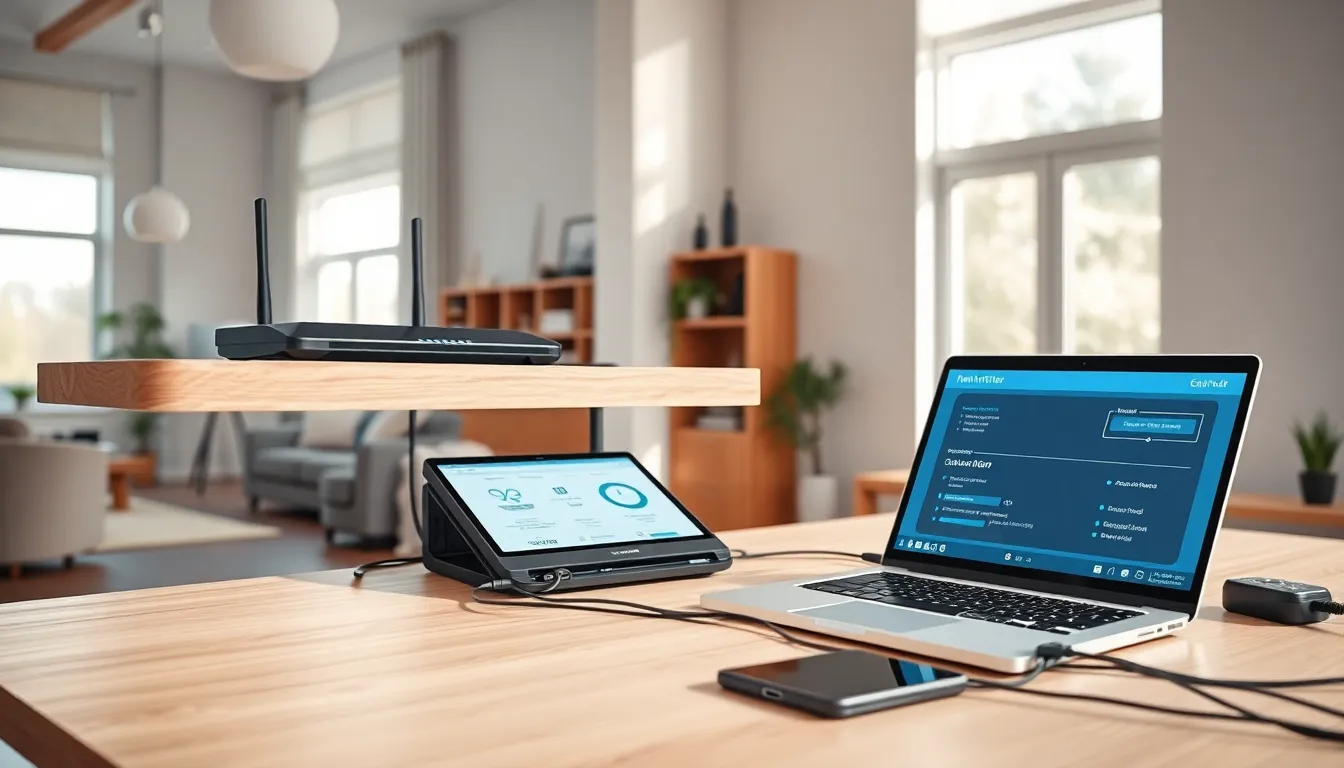
A slow internet connection can ruin a video call, stall a movie mid-stream, or make online gaming unbearable. The good news? Most home networking problems have simple fixes. This guide covers practical home networking tips that anyone can use to boost Wi-Fi performance, strengthen security, and get the most from wired connections. Whether someone is working from home or just wants smoother streaming, these strategies deliver real results.
Table of Contents
ToggleKey Takeaways
- Place your router in a central, elevated location to maximize Wi-Fi coverage throughout your home.
- Secure your home network by changing default passwords, enabling WPA3 encryption, and keeping firmware updated.
- Use the 5 GHz band for faster speeds near the router and 2.4 GHz for devices in distant rooms.
- Connect stationary devices like desktops, gaming consoles, and smart TVs via Ethernet for faster, more reliable performance.
- Troubleshoot slow speeds by restarting your router, checking for interference, and running a speed test to verify your connection.
- These home networking tips can dramatically improve your Wi-Fi performance, security, and overall internet experience.
Choosing the Right Router Placement
Router placement affects Wi-Fi performance more than most people realize. A router hidden in a basement corner or stuffed inside a cabinet will struggle to cover an entire home.
The best spot for a router is a central location, elevated off the floor. Placing it on a shelf or mounting it on a wall helps signals travel farther. Routers broadcast signals in all directions, so a central position ensures better coverage throughout the house.
Certain materials block Wi-Fi signals. Thick concrete walls, metal appliances, and even fish tanks can weaken connections. Keep the router away from microwaves and cordless phones, they operate on similar frequencies and cause interference.
For multi-story homes, positioning the router on the main floor often works best. If dead zones persist, a mesh network system or Wi-Fi extenders can fill the gaps. These home networking tips alone can double connection speeds in some cases.
Securing Your Home Network
An unsecured network is an open invitation for hackers and freeloaders. Basic security measures protect personal data and keep bandwidth thieves at bay.
First, change the default router password. Manufacturers use predictable passwords that hackers know by heart. Create a strong password with at least 12 characters, mixing letters, numbers, and symbols.
Next, enable WPA3 encryption if the router supports it. WPA3 is the current security standard and provides stronger protection than older protocols like WPA2. If WPA3 isn’t available, WPA2 remains acceptable.
Hide the network name (SSID) from public view. This won’t stop determined attackers, but it removes the network from casual scans. Also, disable remote management unless it’s specifically needed, this feature creates a potential entry point for attacks.
Finally, update router firmware regularly. Manufacturers release patches that fix security holes. Most modern routers offer automatic updates, which simplifies this task. These home networking tips add essential layers of protection.
Optimizing Wi-Fi Performance
Slow Wi-Fi frustrates everyone. A few adjustments can dramatically improve speeds.
Start by selecting the right frequency band. Most modern routers offer both 2.4 GHz and 5 GHz bands. The 5 GHz band delivers faster speeds but covers shorter distances. Use it for devices close to the router. The 2.4 GHz band travels farther and penetrates walls better, making it ideal for distant rooms.
Channel congestion causes slowdowns, especially in apartments and dense neighborhoods. Routers automatically select channels, but these choices aren’t always optimal. Apps like Wi-Fi Analyzer show which channels have the least traffic. Switching to a less crowded channel often boosts performance.
Limit bandwidth-hogging devices. Streaming 4K video or downloading large files on multiple devices strains the network. Quality of Service (QoS) settings let users prioritize certain devices or applications. A work laptop could receive priority over a gaming console, for example.
Keep devices updated. Older network adapters may not support faster Wi-Fi standards like Wi-Fi 6. Upgrading these adapters unlocks the router’s full potential. These home networking tips help squeeze every bit of speed from existing equipment.
When to Use Wired Connections
Wi-Fi is convenient, but wired connections outperform it in speed and reliability. For certain tasks, Ethernet cables remain the better choice.
Desktop computers benefit from wired connections. They don’t move around, so the cable isn’t a hassle. Ethernet provides consistent speeds without the fluctuations common to wireless signals.
Gamers should strongly consider wired setups. Online games require low latency, the time it takes data to travel between the device and the server. Wired connections offer latency as low as 1-2 milliseconds, while Wi-Fi latency varies and can spike during congestion.
Smart TVs and streaming devices also perform better with Ethernet. 4K streaming demands substantial bandwidth, and a wired connection ensures smooth playback without buffering.
Even hybrid approaches work well. Connect stationary devices via Ethernet and reserve Wi-Fi for phones, tablets, and laptops. This reduces wireless congestion and improves home networking performance for everyone.
Troubleshooting Common Network Issues
Network problems happen. Knowing how to fix them saves time and frustration.
Slow speeds: Run a speed test to compare actual speeds against what the internet plan promises. If speeds fall short, restart the router. This clears temporary glitches and refreshes connections. If the problem persists, contact the internet service provider.
Dropped connections: Interference often causes disconnects. Move the router away from other electronics. Check if certain times of day produce more dropouts, neighbors may be overloading shared channels.
Devices won’t connect: Restart both the device and the router. Ensure the device isn’t trying to connect to an old network profile. Forgetting the network and reconnecting fresh often resolves stubborn issues.
Slow speeds on one device: The problem likely lies with that specific device, not the network. Check for background downloads or updates. Restart the device and test again.
IP address conflicts: Two devices assigned the same IP address can’t both connect properly. Releasing and renewing IP addresses through the device settings usually fixes this. Alternatively, restarting the router forces new IP assignments.
These home networking tips address the most frequent complaints. When all else fails, a factory reset of the router returns settings to defaults, though this means reconfiguring everything from scratch.


