
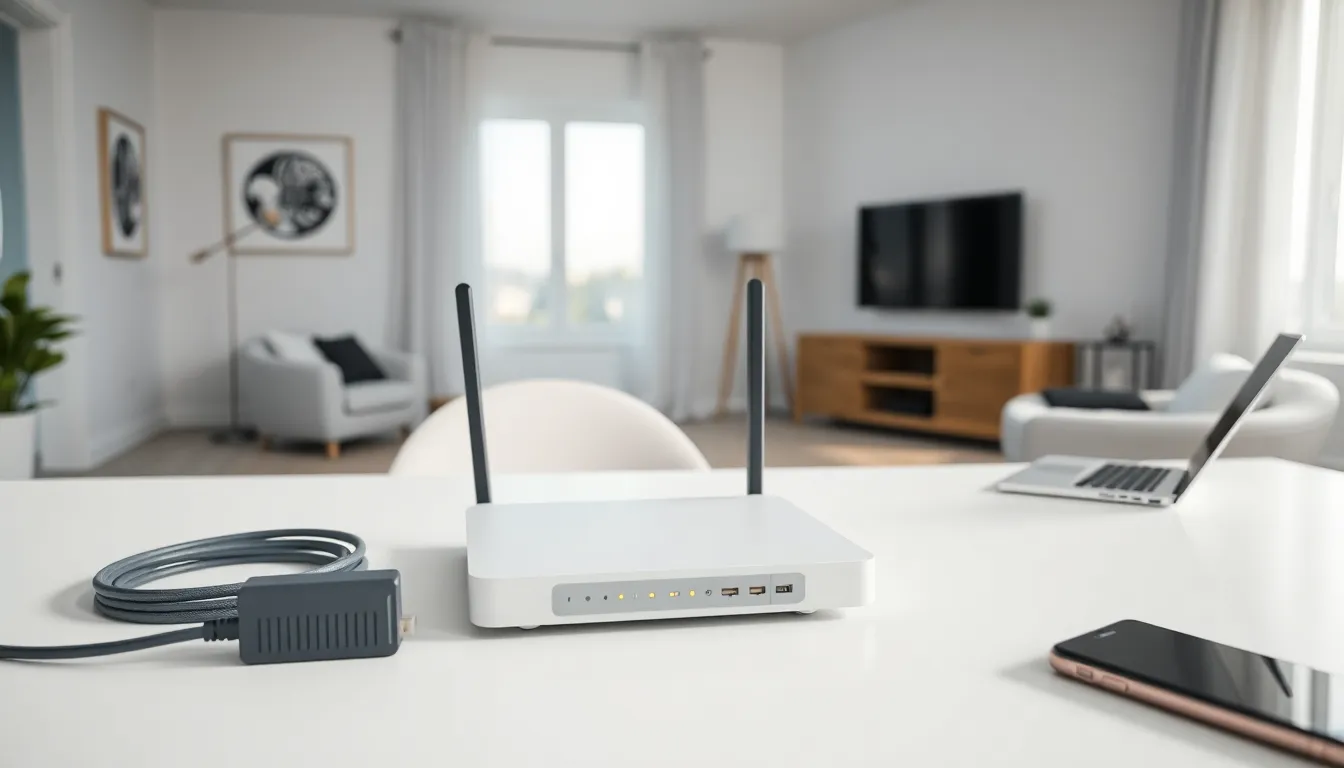
Learning how to home networking starts with understanding a few basics. A reliable home network connects devices, streams content, and supports remote work. Most households now run 10 or more connected devices at once. This guide walks through essential components, router selection, setup steps, security practices, and troubleshooting tips. By the end, anyone can build a fast, secure home network from scratch.
Table of Contents
ToggleKey Takeaways
- Learning how to home networking starts with understanding essential components: modem, router, Ethernet cables, network switch, and access points.
- Choose a router based on your home size, device count, and internet speed—Wi-Fi 6 (AX) routers handle modern households with 25+ devices more effectively.
- Position your router centrally and elevated, away from metal objects and microwaves, to maximize wireless coverage throughout your home.
- Secure your home network by using WPA3 encryption, strong passwords, a guest network for visitors, and keeping firmware updated.
- Troubleshoot slow speeds and dead zones by restarting equipment, switching Wi-Fi channels, or adding mesh systems or Wi-Fi extenders.
- A proper home networking setup takes about 30 minutes and can dramatically improve device connectivity, streaming quality, and remote work performance.
Understanding Your Home Network Components
Every home network relies on a few key pieces of hardware. Understanding these components makes the setup process much simpler.
Modem
The modem connects a home to the internet service provider (ISP). It translates the signal from the ISP into data that devices can use. Cable, DSL, and fiber connections each require specific modem types. Many ISPs provide a modem, but purchasing one often saves money over time.
Router
The router distributes the internet connection to multiple devices. It creates both wired and wireless connections. Modern routers support Wi-Fi 6 or Wi-Fi 6E standards, which offer faster speeds and better performance with many devices. The router acts as the central hub of any home networking setup.
Ethernet Cables
Ethernet cables provide wired connections between devices and the router. Cat5e cables work fine for most homes. Cat6 cables support faster speeds over longer distances. Wired connections deliver more stable performance than wireless for gaming consoles, desktop computers, and smart TVs.
Network Switch
A network switch expands the number of wired connection ports. Most routers include four Ethernet ports. A switch adds more ports for homes with many wired devices. This component proves useful in home offices or media rooms.
Access Points
Access points extend wireless coverage to larger homes. They connect to the main router and broadcast the Wi-Fi signal to distant rooms. Mesh network systems include multiple access points that work together seamlessly.
Choosing the Right Router for Your Needs
The router makes or breaks a home network. Selecting the right one depends on home size, device count, and internet speed.
Speed Ratings
Router speed ratings appear as numbers like AC1750 or AX3000. The letters indicate the Wi-Fi standard (AC for Wi-Fi 5, AX for Wi-Fi 6). The numbers represent combined maximum speeds across all bands. A household with standard browsing and streaming needs at least AC1200. Heavy users and gamers should consider AX3000 or higher.
Coverage Area
Small apartments work fine with basic routers. Homes over 2,000 square feet benefit from mesh systems or routers with strong external antennas. Thick walls and multiple floors reduce signal strength. Mesh systems like those from Eero, Google Nest, or TP-Link Deco cover large spaces effectively.
Number of Devices
The average home now has 25 connected devices. Budget routers struggle with this load. Look for routers with MU-MIMO technology, which serves multiple devices at once. Tri-band routers add a second 5GHz band to reduce congestion.
Budget Considerations
Decent routers start around $60. Mid-range options between $100-$200 handle most homes well. Premium routers and mesh systems cost $300 or more but offer the best performance. Spending more upfront often means fewer headaches later. Home networking success depends heavily on router quality.
Step-by-Step Network Setup Process
Setting up a home network takes about 30 minutes. Follow these steps for a smooth installation.
Step 1: Position Your Equipment
Place the router in a central location. Elevate it on a shelf or mount it on a wall. Keep it away from metal objects, microwaves, and cordless phones. These items interfere with wireless signals. A central position provides the best coverage throughout the home.
Step 2: Connect the Hardware
Connect the modem to the router using an Ethernet cable. Plug this cable into the router’s WAN or Internet port. Connect the power cables to both devices. Wait two minutes for them to fully boot up. The lights on both devices should stabilize.
Step 3: Access Router Settings
Open a web browser on a connected device. Type the router’s IP address into the address bar. Common addresses include 192.168.1.1 or 192.168.0.1. The router’s manual lists the correct address. Log in with the default credentials printed on the router.
Step 4: Configure Basic Settings
Change the default admin password immediately. Set up the Wi-Fi network name (SSID) and password. Choose WPA3 security if available, or WPA2 at minimum. Update the router firmware if prompted. These basic configurations complete the essential home networking setup.
Step 5: Connect Your Devices
Search for the new network name on each device. Enter the Wi-Fi password to connect. Use Ethernet cables for devices that need stable connections. Test the connection by loading several websites and streaming a video.
Securing Your Home Network
An unsecured network invites problems. Hackers can steal data, slow connections, and access smart home devices. These security steps protect the home network.
Use Strong Passwords
Create a Wi-Fi password with at least 12 characters. Mix uppercase letters, lowercase letters, numbers, and symbols. Avoid obvious choices like addresses or birthdays. Change the router admin password from the default to something unique.
Enable Network Encryption
WPA3 offers the strongest protection currently available. WPA2 remains acceptable if devices don’t support WPA3. Never use WEP encryption, it’s outdated and easily cracked. Check encryption settings in the router’s wireless security menu.
Create a Guest Network
Set up a separate guest network for visitors and smart home devices. This keeps the main network isolated. Guests can access the internet without seeing other devices. Many smart home products have security vulnerabilities, so separating them adds protection.
Keep Firmware Updated
Router manufacturers release firmware updates that fix security holes. Enable automatic updates if the router supports this feature. Otherwise, check for updates monthly. Outdated firmware leaves networks exposed to known threats.
Disable Remote Management
Turn off remote management unless specifically needed. This feature allows router access from outside the home network. Hackers exploit this setting frequently. Find this option in the router’s administration settings.
Troubleshooting Common Connection Issues
Even well-configured networks have problems sometimes. These solutions fix most common home networking issues.
Slow Speeds
Run a speed test at fast.com or speedtest.net. Compare results to the ISP’s promised speeds. If speeds fall significantly short, restart the modem and router. Move closer to the router to test signal strength. Too many devices or old equipment often cause slowdowns.
Intermittent Disconnections
Frequent disconnections usually indicate interference or overheating. Move the router away from other electronics. Ensure proper ventilation around the router. Check for firmware updates that might fix stability issues. Overlapping Wi-Fi channels from neighbors can cause problems too, switch channels in router settings.
Devices Won’t Connect
First, verify the Wi-Fi password. Restart the device and try again. Forget the network in device settings, then reconnect fresh. Some older devices don’t support newer security protocols. Check if the router has reached its device limit.
No Internet Connection
Check if the modem shows an active connection. Contact the ISP if modem lights indicate problems. Restart both the modem and router in sequence, modem first, then router. Try a direct Ethernet connection to isolate whether the issue affects wired or wireless only.
Weak Signal in Certain Areas
Dead zones happen in most homes. A Wi-Fi extender or mesh system solves this problem. Powerline adapters use electrical wiring to extend network coverage. Repositioning the router sometimes eliminates dead zones without additional equipment.


