
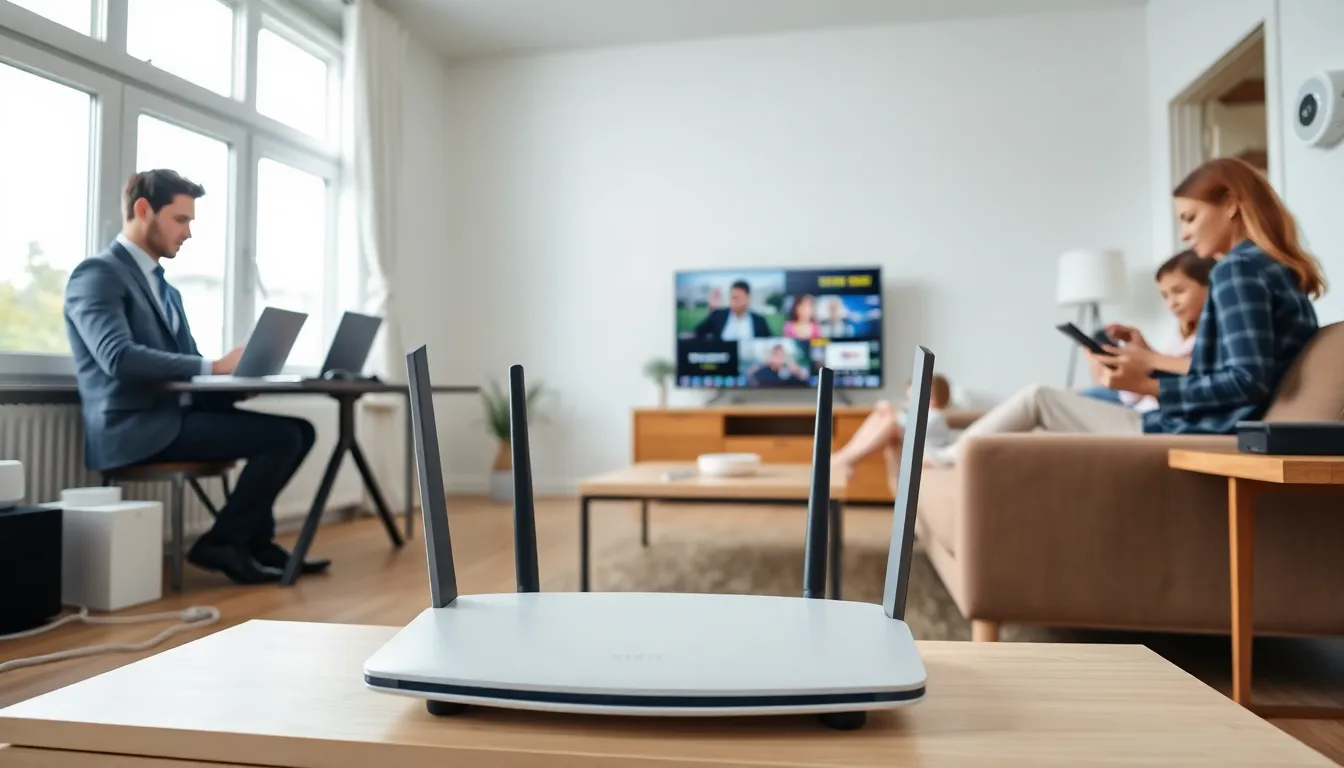
Home networking connects all the devices in a household to share internet access, files, and resources. Whether someone streams movies on a smart TV, prints documents wirelessly, or controls smart home gadgets, a home network makes it possible. This guide explains what home networking is, how it works, and what equipment beginners need to get started. By the end, readers will understand how to build a reliable home network that keeps every device connected.
Table of Contents
ToggleKey Takeaways
- Home networking connects all household devices to share internet access, files, and resources through a central router.
- Essential equipment includes a modem, router, Ethernet cables, and optionally Wi-Fi extenders or mesh systems for larger homes.
- Wired connections offer faster speeds and better security, while wireless networks provide convenience and mobility.
- A hybrid setup combining Ethernet for stationary devices and Wi-Fi for mobile devices delivers the best home networking performance.
- Position your router centrally, use strong passwords with WPA3 encryption, and consider placing IoT devices on a separate guest network for security.
- For homes over 2,000 square feet or with multiple floors, a mesh system eliminates dead zones and ensures consistent coverage.
How Home Networks Work
A home network operates by connecting multiple devices to a central hub, typically a router. The router acts as the traffic controller. It receives data from the internet via a modem and distributes that data to connected devices like laptops, smartphones, tablets, and smart TVs.
Here’s the basic flow: An internet service provider (ISP) delivers an internet connection to the home through a modem. The modem translates that signal into data the router can use. The router then sends this data to devices either through Ethernet cables or Wi-Fi signals.
Each device on a home network receives a unique IP address. This address identifies the device and allows the router to send the correct information to the right place. Think of IP addresses like mailing addresses for data packets.
Home networking also enables local communication between devices. A computer can send files to another computer on the same network without using the internet. A phone can stream music to a wireless speaker. A laptop can print to a network printer in another room. All of this happens because these devices share the same home network.
Modern home networks support dozens of devices simultaneously. From security cameras to gaming consoles to refrigerators, the average household now has more connected devices than ever before.
Essential Home Networking Equipment
Setting up a home network requires specific equipment. Here’s what most households need:
Modem
A modem connects the home to the ISP. It converts the incoming signal (cable, fiber, or DSL) into data that devices can use. Many ISPs provide a modem as part of their service, though users can purchase their own.
Router
The router distributes the internet connection to multiple devices. It creates the actual home network. Most routers today include Wi-Fi capability, allowing wireless connections throughout the home.
Modem-Router Combo
Some devices combine both functions into one unit. These gateway devices simplify setup but may offer less flexibility than separate components.
Ethernet Cables
For wired connections, Ethernet cables link devices directly to the router. Cat5e and Cat6 cables are standard choices for home networking. They provide faster, more stable connections than Wi-Fi.
Network Switch
A switch expands the number of available Ethernet ports. If a router has four ports but a user needs eight wired connections, a switch solves that problem.
Wi-Fi Extenders or Mesh Systems
Large homes often have Wi-Fi dead zones. Extenders boost the existing signal to reach farther. Mesh systems use multiple access points to blanket the entire home with consistent coverage. For serious home networking needs, mesh systems typically perform better than basic extenders.
Access Points
Businesses use access points frequently, but they work well in homes too. An access point connects to the router via Ethernet and broadcasts a separate Wi-Fi signal, extending coverage without degrading speed.
Wired vs. Wireless Home Networks
Home networking comes in two main flavors: wired and wireless. Each approach has distinct advantages.
Wired Networks
Wired connections use Ethernet cables to link devices directly to the router. This method delivers the fastest speeds and lowest latency. Gamers, video editors, and anyone transferring large files benefit most from wired connections.
Wired home networking also offers better security. Data travels through physical cables rather than through the air, making interception much harder. The connection remains stable regardless of interference from walls, appliances, or neighboring networks.
The downside? Cables. Running Ethernet throughout a home requires planning, drilling, and potentially professional installation. Devices must stay near outlets, limiting mobility.
Wireless Networks
Wi-Fi dominates modern home networking for good reason. It offers convenience and flexibility. Users can move freely with laptops, phones, and tablets. Smart home devices like thermostats and doorbell cameras rely on wireless connections.
Wireless speeds have improved dramatically. Wi-Fi 6 (802.11ax) and the newer Wi-Fi 7 deliver speeds that rival wired connections for most everyday tasks. Streaming, browsing, and video calls work perfectly over a solid Wi-Fi connection.
But, wireless signals degrade over distance and through obstacles. Walls, floors, and interference from other devices can slow connections. Security requires strong passwords and encryption to prevent unauthorized access.
The Best Approach
Most homes use a hybrid setup. Stationary devices like desktop computers, gaming consoles, and smart TVs connect via Ethernet when possible. Mobile devices use Wi-Fi. This combination maximizes both speed and convenience for home networking.
Tips for Setting Up Your Home Network
Getting a home network running smoothly takes some planning. These tips help beginners avoid common mistakes:
Position the Router Centrally
Wi-Fi signals radiate outward from the router. Placing it in a central location ensures better coverage throughout the home. Avoid corners, closets, and spots near metal objects or appliances that cause interference.
Update Router Firmware
Manufacturers release firmware updates that fix bugs, patch security holes, and improve performance. Check for updates during setup and periodically afterward.
Create a Strong Password
A weak Wi-Fi password invites trouble. Use at least 12 characters combining letters, numbers, and symbols. Change the default network name (SSID) to something that doesn’t identify the router brand.
Enable WPA3 Encryption
WPA3 is the latest security standard for home networking. If devices support it, enable WPA3 on the router. For older devices, WPA2 remains acceptable.
Separate IoT Devices
Smart home gadgets often have weaker security than computers and phones. Many routers allow users to create a guest network. Placing IoT devices on a separate network limits potential damage if one gets compromised.
Use Ethernet for Bandwidth-Heavy Devices
Desktop computers, gaming consoles, and streaming boxes perform better with wired connections. Reserve Wi-Fi bandwidth for devices that actually need mobility.
Consider a Mesh System for Large Homes
Homes over 2,000 square feet or those with multiple floors often struggle with single-router coverage. A mesh system eliminates dead zones and provides consistent home networking performance everywhere.
Label Your Cables
This sounds minor, but future troubleshooting becomes much easier when cables are labeled at both ends.


